1
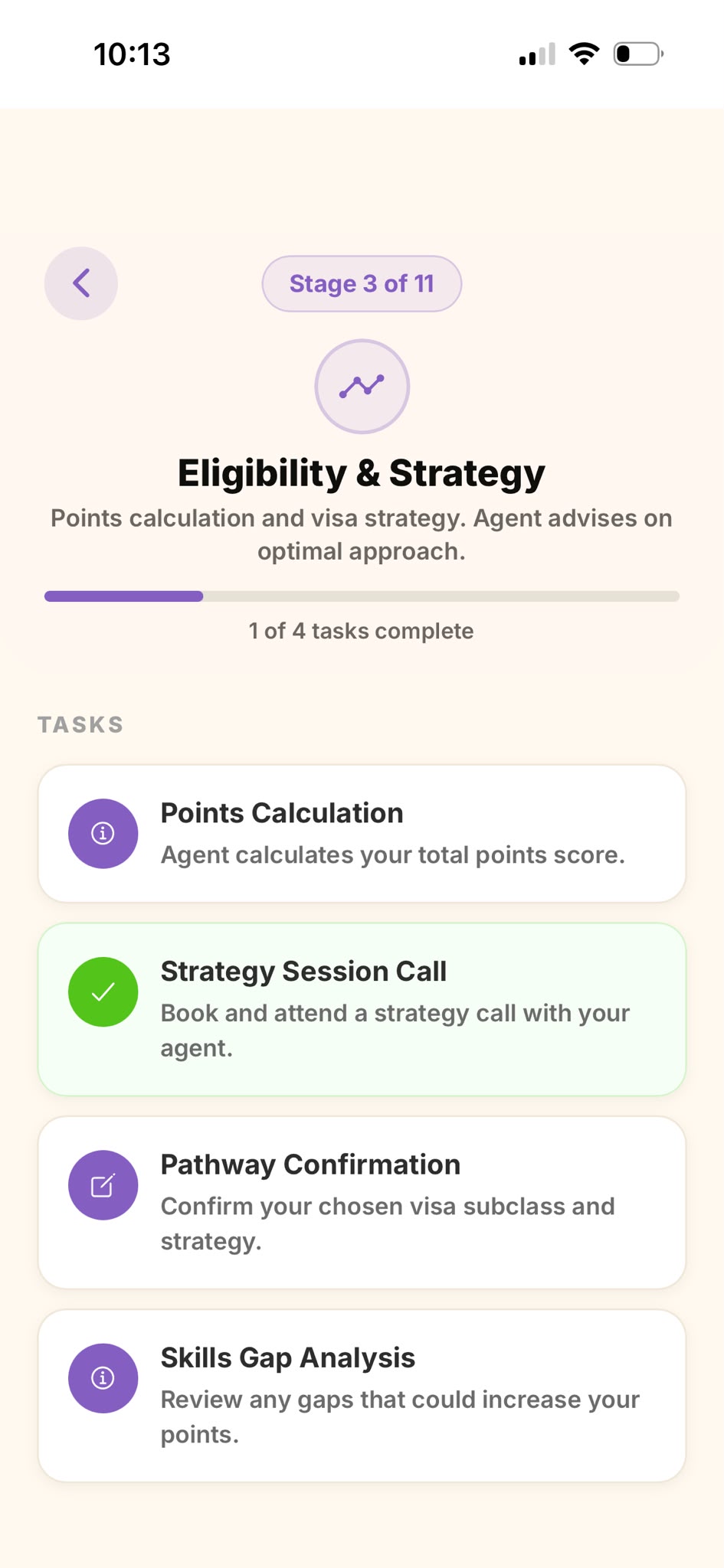
Open the document task
In your active stage, tap the document task — it asks you to upload or attach a file.
2
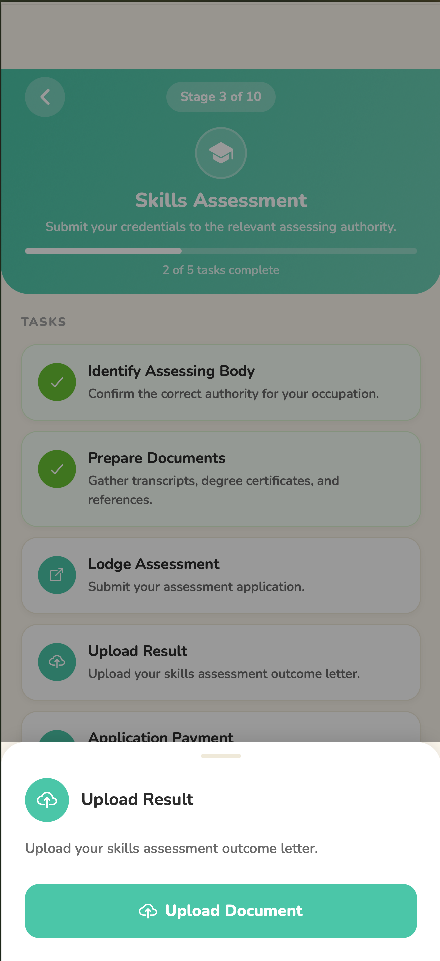
Upload your file
Tap Upload and choose a photo, pick a file, or take a new photo. Wait for the upload to finish.
3
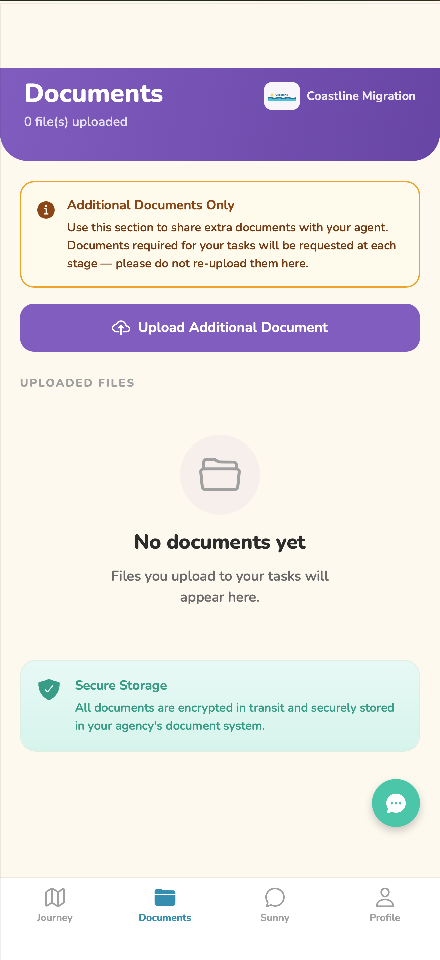
Find it under Documents
Every file you upload is kept in the Documents tab, so you can review what you've sent any time.
🔒
Your files are encrypted and visible only to your migration agency. Most photos and PDFs are accepted — if a file won't upload, check it isn't too large and try again, or message your agent.